
Guides · Features
Listen to Audiobookshelf on Apple Watch without your iPhone
Download Audiobookshelf books and podcasts to your Apple Watch with SoundLeaf and listen with the iPhone left at home, or use the watch as a remote.
Yes, you can listen to Audiobookshelf on your Apple Watch with the iPhone left at home. Send a book or episode to the watch, wait for it to download, and it plays from the watch with no phone nearby.
The watch app can also drive playback on the phone, so it works as a remote when the phone is in a bag. The watch app comes free with SoundLeaf.
Requirements
- watchOS 11 or later
- An Apple Watch paired to the iPhone running SoundLeaf
- The SoundLeaf watch app installed (see below)
Installing the watch app
The watch app ships inside the iPhone app, so there’s nothing separate to buy.
- Open the Watch app on your iPhone
- Scroll to Available Apps
- Tap Install next to SoundLeaf
If you have “Automatic App Install” turned on in the Watch app’s General settings, it installs on its own after you update SoundLeaf.
Sending a book to the watch
- Open the book or podcast episode on your iPhone
- Tap Send to Watch
- Leave both apps open for a moment while the handoff starts
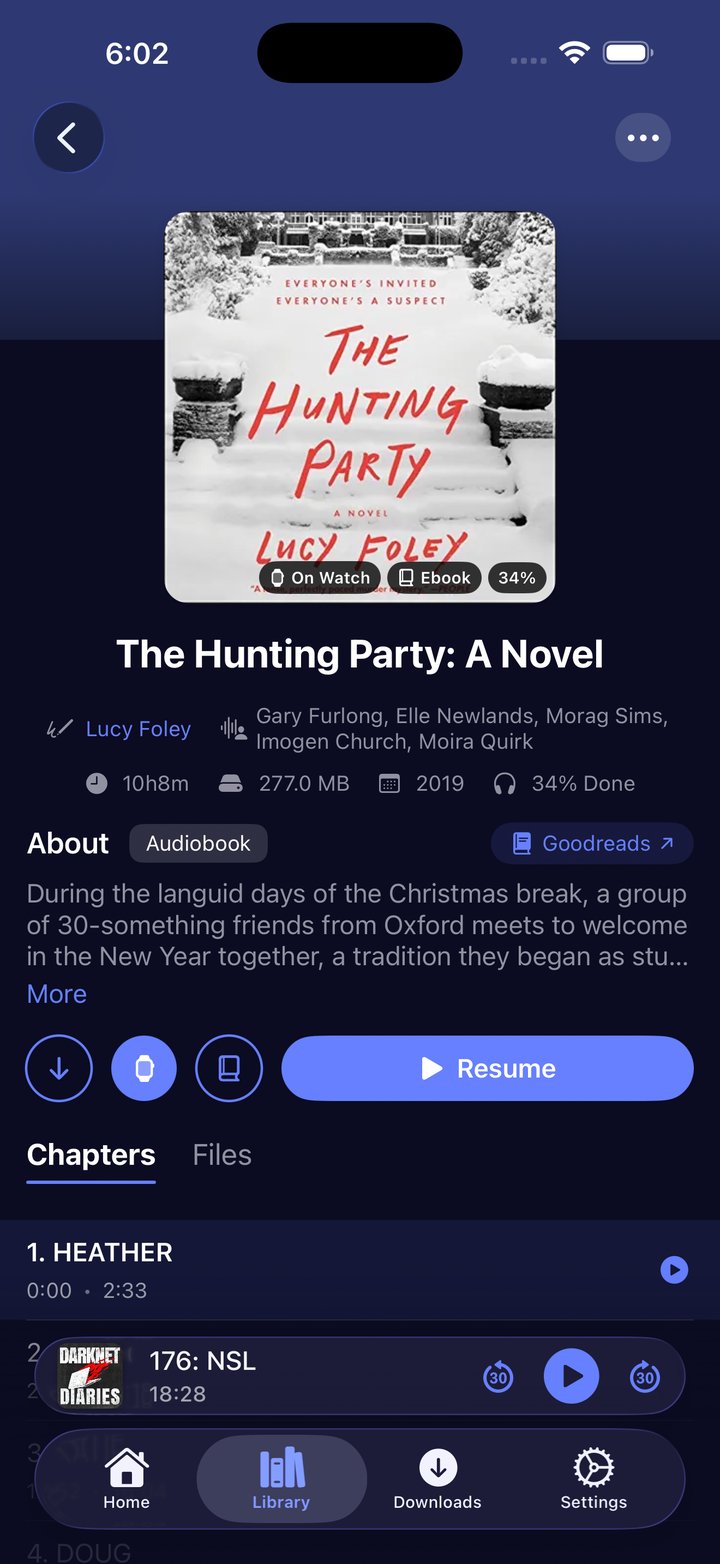
Once the phone hands it the download, the watch fetches the audio from your server itself, so the phone doesn’t need to stay awake for the whole transfer. Progress shows on the watch’s own downloads screen, and on Settings > Apple Watch on the phone.
There’s a Send to Watch entry in the book’s overflow menu too, and tapping the button again on something already sent offers to take it back off.
Send to Watch only appears when a watch is paired. Big books take a while, so send them the night before rather than five minutes before a run.
Downloads can also start from the watch itself: open anything under Books or Podcasts on the watch and tap Download. Your iPhone still needs to be in reach to start it, but you don’t need to touch it.
Browse your Audiobookshelf library on Apple Watch
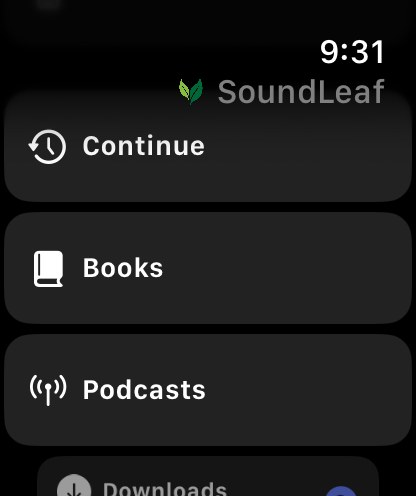
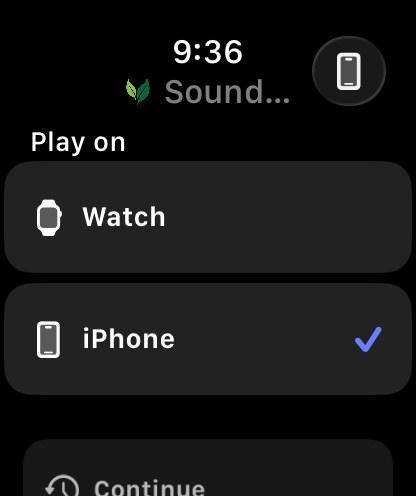
The watch app’s home screen is a short menu. At the top sits Play on, a two-way switch between Watch and iPhone. It decides where a tap plays: the watch itself, or your iPhone. For listening without the phone, set it to Watch. On iPhone, Downloads shows the phone’s downloads instead, and the watch’s download buttons are hidden.
Then the menu:
- Continue picks up the books and episodes you were in the middle of, most recent first.
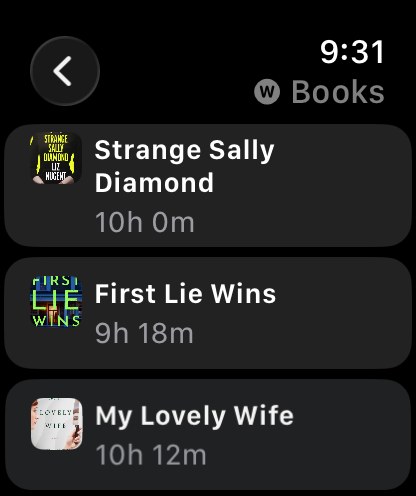
- Books and Podcasts let you browse your library from the wrist, books ordered by what you played last. A big library shows a shorter list, with “Showing X of Y” under it. These lists come from the phone, and the watch keeps its own copy, so they still open when the phone is nowhere near.
- What is fully downloaded sits under Downloads. With Play on set to Watch, everything there plays with the phone left at home.
- Your username, near the bottom, opens the list of your phone’s saved accounts, so you can pick the one the watch uses. An account that needs a fresh sign-in says Sign in on iPhone.
- Status at the bottom reports what the link to the phone is doing right now, and shares logs when something needs reporting.
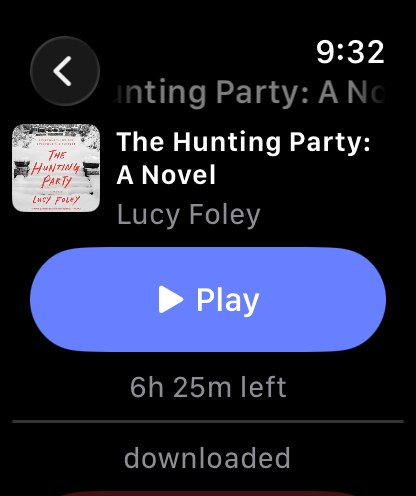
Open a book or an episode and the screen offers what is actually possible right then:
- Play if it is downloaded to the watch
- Stream if it isn’t, or Stream (needs phone) when the phone is out of reach
- Download to fetch it onto the watch, started from the watch itself
Listening without your iPhone
Once the audio is on the watch, everything you need is on your wrist:
- Play, pause, and skip, matching the skip lengths you chose in Settings
- Chapter list for jumping around a book
- Playback speed
- Volume on the Digital Crown
- Headphone controls, including the skip buttons on AirPods
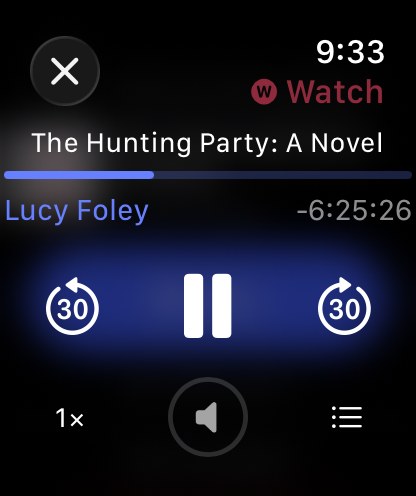
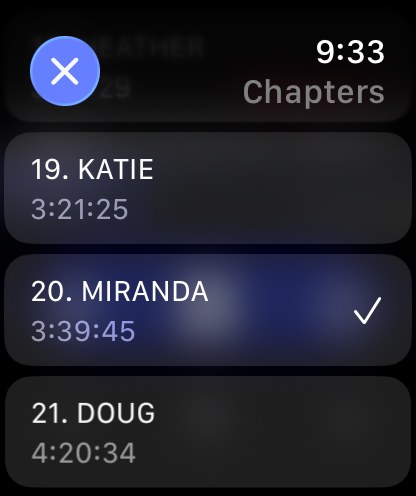
The player marks which one it is at the top: Watch in red when the watch is playing, iPhone in blue when it is driving the phone. The bottom row has volume in the middle (turn the Digital Crown) with a button on each side. Out of the box that’s speed on the left and the chapter list on the right.
Pair your headphones to the watch directly (Settings > Bluetooth on the watch), not to the phone. The watch can only send audio to something paired with the watch. On watches with a speaker that plays audio, you can listen through it when nothing is paired.
Choose the buttons beside the volume
On the phone, go to Settings > Apple Watch and find Watch player. Left button and Right button can each be Speed, Chapters or Bookmark. Picking the one already on the other side swaps them. On a podcast, Chapters shows episodes.
Playback speed on the watch and the phone
Each book and each show keeps its own speed, on both the watch and the phone. Change it on either one and the newest change wins on both. Your default speeds come from the phone.
Bookmarks from the watch
Put Bookmark on one of the side buttons, then tap it while you listen. The bookmark waits on the watch until the phone picks it up, then it’s saved like any other. There’s no bookmark list on the watch; you’ll find them on the phone, with the rest in queue, playlists and bookmarks.
Using the watch as a remote for your iPhone
Set Play on to iPhone and the watch drives the phone instead: play, pause, skips and speed all land on the phone’s player. The button in the top right opens a remote screen showing what the phone is playing. Browsing works the same; a tap plays on the phone. Useful when the phone is in a bag or a coat pocket.
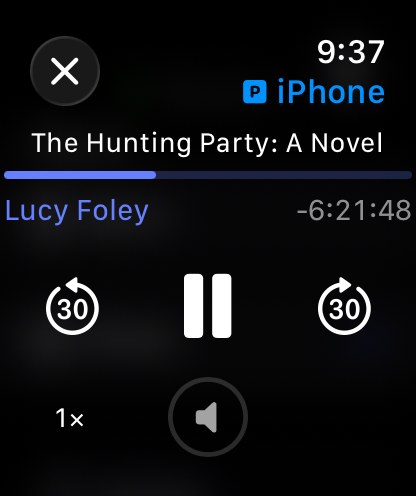
When the phone can’t be reached, the remote says Phone out of reach.
Manage from your phone
You can manage what’s on the watch from your iPhone.
Go to Settings > Apple Watch > Content. The picker at the top switches between Books and Podcasts.
Remove several items at once
Every row has a circle on the left. Tap rows to pick them, and a card appears at the bottom saying how many you picked, with a Remove button. One confirmation and they all go.
An item still waiting to be sent to the watch can’t be picked yet. Wait for the watch to pick it up, then remove it.
Keep the newest episodes of a show
With shows picked on the Podcasts tab, the Keep newest menu sets how many episodes of each stay on the watch: 5, 10, 20, 50 or 100. New episodes arrive on the watch by themselves and the oldest drop off as the count is passed.
The same setting sits on a show’s own settings screen if you’d rather set one show at a time.
Choosing Off, remove from the watch does what it says, and taking a show off the watch turns its keep rule off too, so episodes stop arriving. The confirmation tells you when that’s about to happen.
Put back an episode you removed
Tap the arrow on a show to see its episodes one by one. An episode you took off reads Removed and has an Undo button. Tap it and the episode is sent to the watch again.
An episode you remove by hand stays off the watch, even with Keep newest on, unless you tap Undo.
If the phone doesn’t hold that show’s episode list, the screen says so. Whatever is downloaded stays on the watch, and you can still take the whole show off from All shows.
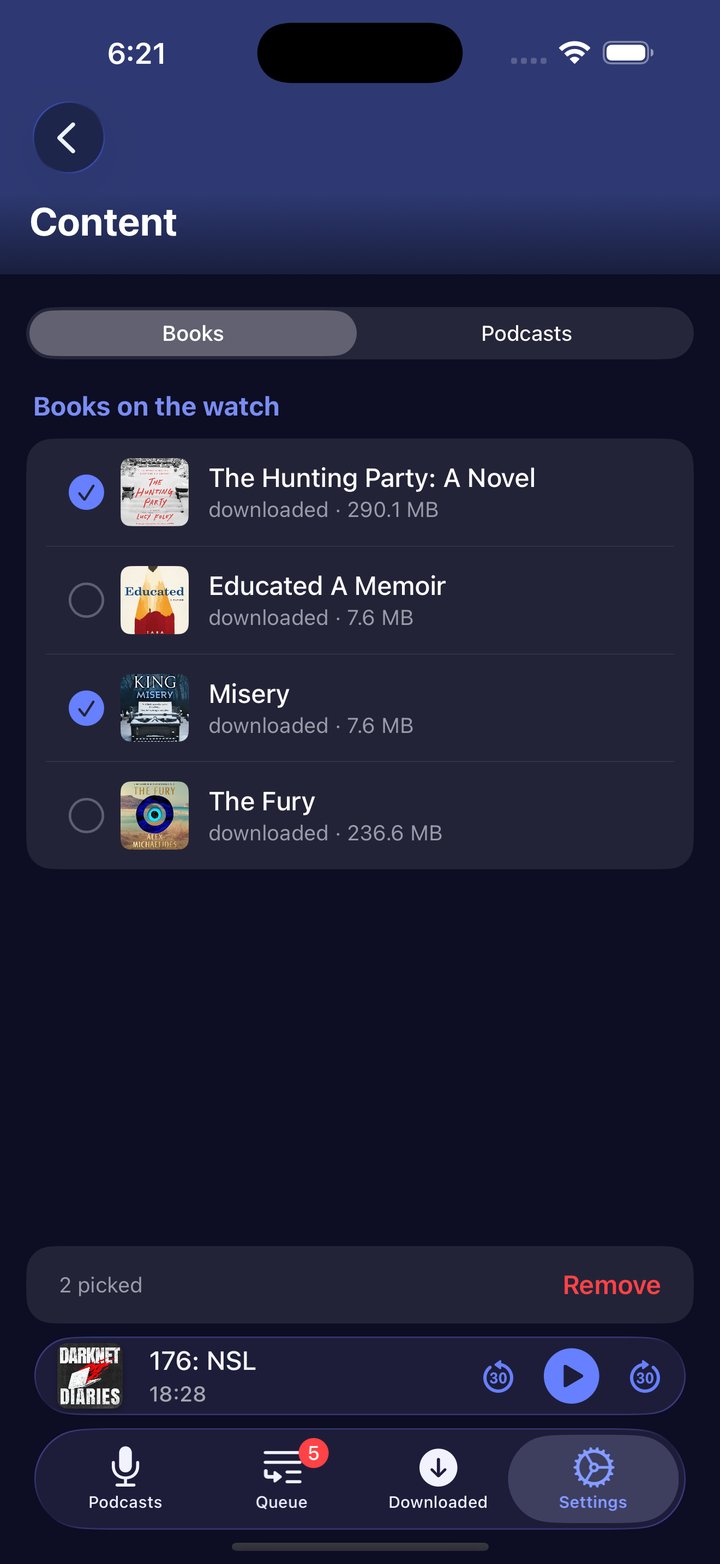
Every row says where it stands in plain words: downloaded, downloading with a percentage, queued, stopped on the watch, or removed. When the watch hasn’t been in touch for a while, the screen says how old its information is.
Add SoundLeaf to your watch face
Add the Now Reading complication, a small SoundLeaf widget, to your watch face. It shows your book’s progress, and a tap takes you back into it. It also shows up in the Smart Stack.
How progress gets back to your server
Your listening from a phone-free session reaches your Audiobookshelf server on its own, once the phone is around again. Progress is saved on the watch, then synced through your iPhone to your server when the two reconnect.
The watch uses an account saved on your iPhone (tap your username on the watch to choose which one), and the phone does the talking to your server for it. Your password is not copied to the watch.
So listening offline on the watch works fine, and the sessions wait on the watch until the phone is next in contact. Your iPhone needs to be reachable when you start a stream or a download. Each account on the watch is one you’ve saved on the phone; see multiple accounts.
Can the watch reach a Tailscale-only server?
Not when it’s away from the phone. watchOS has no Tailscale app, so when the watch downloads or streams over its own Wi-Fi or cellular, it can’t reach a server that’s only on Tailscale.
Download books to the watch before you go out, and check they’ve finished. Downloaded books play with no connection. A download you start with the phone nearby can carry on over the watch’s own Wi-Fi or cellular, but only if the server’s address can be reached from the network the watch is on. See listen away from home and the Tailscale guide.
What the watch status on the phone means
Settings > Apple Watch shows the link both ways: what is queued to go To the watch, and what has come back From the watch. A status line under them says how the link is right now.
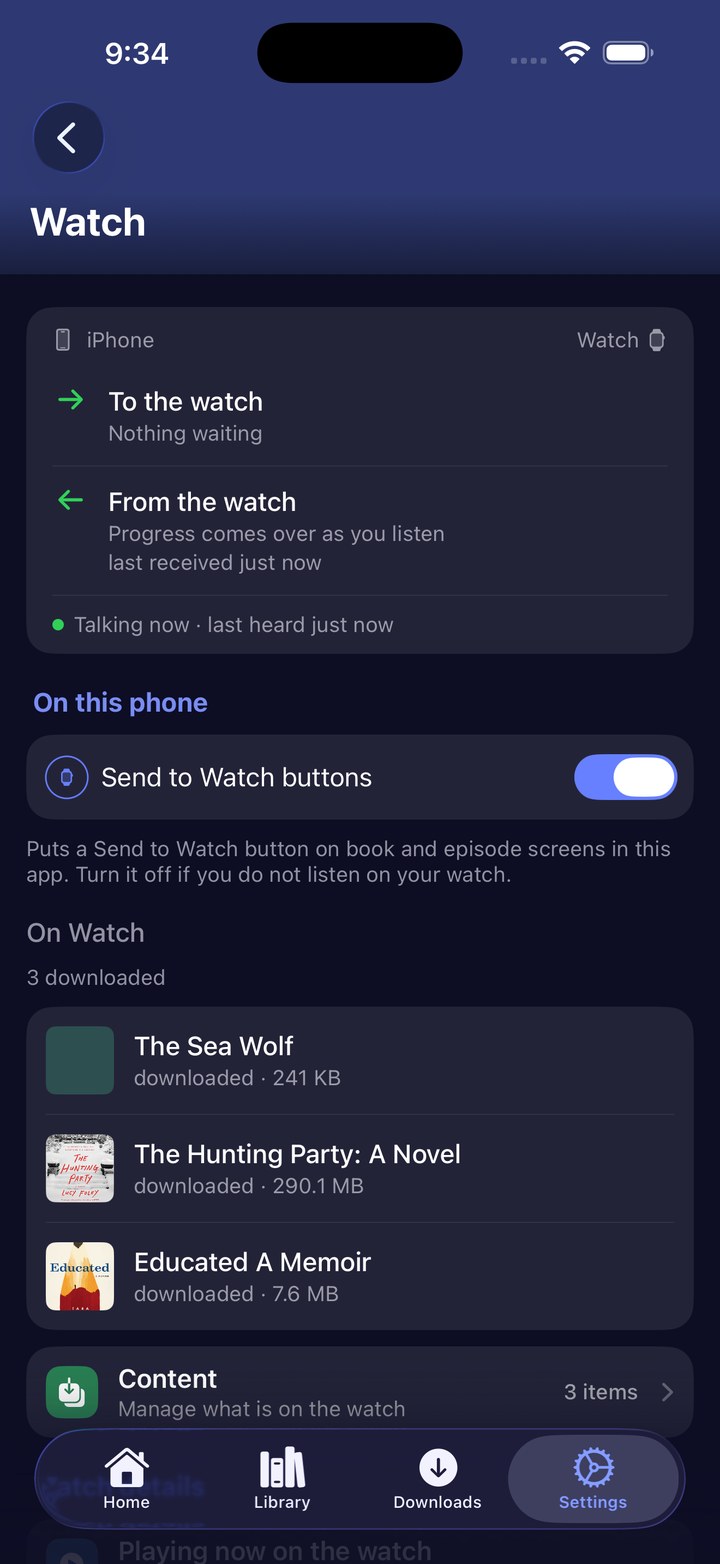
| What you see | What it means |
|---|---|
Connected · last updated ... | The watch app is open and in contact (green dot) |
Not currently connected · last updated ... | The phone can’t contact the watch app right now (grey dot). Open SoundLeaf on both devices, close together |
Waiting for the watch app to connect. | The watch hasn’t checked in yet. Open SoundLeaf on the watch |
Nothing waiting | Nothing is queued for the watch |
1 item queued for your watch | Something is waiting to go. Queued … says for how long |
No watch paired | Pair a watch in the iPhone’s Watch app first |
A grey dot is not a fault. iOS mostly reports the watch as reachable while SoundLeaf is open on it and the watch is in range, so a watch on your wrist with the app closed often reads as not connected. Open SoundLeaf on both devices, close together, to connect. Orange under To the watch means something is waiting to be sent.
If something has been queued a while, the phone says “Open SoundLeaf on the watch to hand this over now. It also happens on its own when the watch next wakes.”
Troubleshooting
Send to Watch doesn’t appear
Either no watch is paired, or the Send to Watch buttons switch in Settings > Apple Watch is off. The button also stays hidden on an item with no audio tracks.
A transfer has been waiting for hours
Open SoundLeaf on both the watch and the phone, with the two close together, to start the transfer. Once the download begins, the phone doesn’t need to stay awake.
Audio plays on the phone instead of the watch
First check Play on at the top of the watch app is set to Watch. If it is, check your headphones are connected to the watch and not the phone. Pair them to the watch in the watch’s own Bluetooth settings.
Why are downloads to my Apple Watch slow?
With the phone nearby, the watch often downloads over Bluetooth, which is slow. To speed it up:
- Start the download with the phone in reach.
- Turn Bluetooth off in the Settings app on either device. The Control Center button doesn’t turn it off fully, and Airplane Mode may leave it on.
- The watch carries on over its own Wi-Fi or cellular, which is often faster. This needs a server address the watch can reach on that network, so it won’t help with a Tailscale-only server away from home (see above).
- Turn Bluetooth back on when the download is done.
A row on the Content screen can’t be picked
It’s still waiting to be sent to the watch, or you already removed it.
New episodes stopped arriving on the watch
Taking a show off the watch turns its Keep newest rule off. Set the count again on the Podcasts tab, or on the show’s own settings screen.
The watch says “Phone out of reach”
The watch couldn’t contact your iPhone. Lists still open from the watch’s saved copy, and downloaded audio still plays. What needs the phone right then, like streaming or the iPhone remote, says so. Opening SoundLeaf on the phone usually brings the link back.
Stream says “needs phone”
Starting a stream needs your iPhone in reach. To listen with no phone at all, bring the phone close, tap Download, and wait for it to finish before you leave the phone behind.
A list on the watch looks out of date
The watch saves its library lists from your phone. Open SoundLeaf on both devices to refresh them.
Progress isn’t showing on the server
Open SoundLeaf on your iPhone with the watch nearby. If you listened on other devices too, how progress syncs explains which position wins. The phone is what talks to your Audiobookshelf server. The watch’s Status screen shows this working: it says whether progress has been handed over, and hands it over by itself when the phone is in reach, even with the watch app closed.
Reporting a problem
The watch’s Status screen (bottom of the home menu) shows the phone link, listening progress hand-over, and storage. Tap Prepare logs to share, then Share logs, to send the log from this watch app session. Sending it with your report helps track the problem down.