
Guides · Features
Read Audiobookshelf ebooks on iPhone with Read Along in SoundLeaf
SoundLeaf reads the EPUBs in your Audiobookshelf library for free, highlights words as the narrator reads them, and keeps your place. Setup and fixes.
SoundLeaf reads the EPUB files in your Audiobookshelf library, for free. Open a book that has an EPUB next to its audio and tap Read.
Read Along highlights the words as the narrator says them and turns the pages for you. Play from this page goes the other way, starting the audio from where you are reading.
You don’t need Calibre or anything else for this. If your ebooks live in Calibre, Calibre-Web or BookOrbit instead, see Calibre, BookOrbit and KOReader.
How do I open an Audiobookshelf ebook?
The Read button sits on the book’s page and in the player. When the book has an EPUB, tapping it opens the reader. When it doesn’t, the button is greyed out. A tap shows your ebook options, or finds a matching ebook if you’ve connected a catalog such as Calibre.
In Audiobookshelf a book can carry both an audio file and an ebook file in the same folder, and that’s what SoundLeaf looks for. Ebooks and audiobooks as one book shows how to set that up on the server. Only EPUB opens in the reader. A book with only a PDF or MOBI says so on its Read Along tab.
How do I turn pages?
- Swipe, or tap the right side of the page, to turn the page. With Scroll set to Vertical, you scroll instead.
- Tap the left side to go back a page.
- Tap the middle to show or hide the controls.
- With a keyboard on iPad or Mac, the left and right arrow keys turn the page.
Change the font, page colour and layout
With the controls showing, the text size button at the top right opens the appearance options:
- Typeface, Text size and Line spacing.
- Page colour: Light, Sepia or Dark, or Auto, which follows light and dark mode. With Auto on, choose the page for Light mode and for Dark mode separately.
- Scroll: Horizontal turns pages, Vertical scrolls the book like a web page.
- Margins.
- Page layout, on iPad and Mac: Automatic, One Page or Two Pages. See iPad and Mac.
- Highlight style for Read Along.
These are the reader’s own settings, separate from the app’s theme, so you can read on a dark page while the rest of the app stays light. Font and size are also in Settings > Reading & listening.
Browse ebook maps and illustrations
Many ebooks have maps, family trees or pictures. Open the book’s Images tab, or the images button in the player, to browse them without losing your place.
- Pick a chapter, or see All chapters.
- Tap an image to open it, then pinch to zoom and swipe to the next one.
- Pin image keeps it under Pinned at the top.
- Show nearby images at the top of this page puts the pictures near your listening position first.
- Replace player cover with nearby images shows them in the player instead of the cover.
- Hide small or narrow images keeps out icons and decorations. It’s on to start with.
Read ebooks offline
After the first open, the reader works with no connection. The EPUB is on your device.
When you download a book’s audio, its EPUB comes along with it. If you add an EPUB on the server after downloading the audio, refresh the library, and SoundLeaf fetches the missing ebook the next time it launches. An ebook download you removed yourself isn’t fetched again on its own. EPUBs count toward the numbers on the Storage screen.
Sync your reading position with Audiobookshelf
Your place in the book syncs with the Audiobookshelf web reader in both directions. When another device has a newer reading position, SoundLeaf offers to open it. If it asks, choose Continue from there or Stay here.
This is separate from your audio progress. A book can have you at chapter 12 in the audio and page 40 in the text. Read Along and Play from this page are how you line them up.
Update your ebook place while listening
Sync ebook position while listening moves your place in the ebook as you listen, even with the reader closed or the phone locked, and syncs it to your server. Turn it on in Settings > Reading & listening > Position sync, or for one book in its Read Along tab.
It needs the audiobook and its matching ebook downloaded first. Keeping your place up to date like this can use more battery.
Search inside a book
Search in the reader looks through the open book. Results show the chapter name each hit is in and how far through the book it appears. There’s a button to get you back to where you were reading, so a search never loses your place.
Add an audio bookmark while reading
You can add an audio bookmark from the reader, at the spot you’re listening to. It’s saved with the book’s other bookmarks.
How do I turn on Read Along?
The Read Along pill at the bottom of the reader turns it on. SoundLeaf remembers the choice for that book. Turn a page yourself and following pauses. The pill counts down from five seconds, then goes back to where the narrator is.
What does Read Along need?
- The book’s audio and its EPUB, both downloaded to your phone. SoundLeaf matches the audio to the text on the device.
- A listening position. Play the audiobook first, then turn Read Along on. Otherwise it says “Play the audiobook first, then read along can find its place.”
- Speech recognition. SoundLeaf recognises speech on your device. If it asks for Speech Recognition permission, allow it. No audio is uploaded.
The first time, SoundLeaf has to process the book: it listens to the audio and finds where each part is in the text. The pill says Reading the book or Finding your place while it does.
Choose the narration language
SoundLeaf uses the book’s language from Audiobookshelf, or from the ebook. If that’s wrong, open the book’s Read Along tab and change Narration language under Settings for this book. Stop processing first: the language can’t change while a book is being processed. Which languages you can pick depends on your device.
Does Read Along drain the battery or make the phone hot?
Processing a book is real work for the phone, so SoundLeaf limits when it happens on its own. You choose the rules in Settings > Reading & listening, in the Read Along section.
- When to prepare automatically decides when SoundLeaf may process books you haven’t asked for yet. While Charging waits for a charger. Above 80% down to Above 30% also allow it on battery above that level. Never turns it off. The default is Above 70%.
- Pause when the phone is warm stops automatic processing until the phone cools down. If the phone gets very hot, processing stops anyway.
- Ahead and Behind, under Processing defaults, set how much of the book to prepare around where you’re listening. Smaller numbers mean less work at once.
Some things pause processing whatever you choose:
- Low Power Mode pauses it.
- Playback. While you listen, SoundLeaf only keeps just ahead of you so the audio stays smooth. The rest waits until you stop.
- Processing only runs while SoundLeaf is open or playing audio.
The book’s Read Along tab says what it’s waiting for, for example “Waiting for a charger.” or “The device is too warm, so background processing is paused until it cools down.” Each book also has a Background processing switch there, to leave that one book alone unless you start it yourself.
If you’d rather not think about it, set When to prepare automatically to While Charging, and leave SoundLeaf open on the charger to prepare downloaded books.
Open Settings > Reading & listening > Processed Books to see Read Along progress and storage use for each book, and to delete the saved processing data.
Play from this page
Read Along goes from the audio to the page. Play from this page goes the other way: you’ve read ahead, and now you want to listen from there.
The … button next to the Read Along pill has Play from this page. SoundLeaf finds the passage you’re on in the audio and starts playing from it.
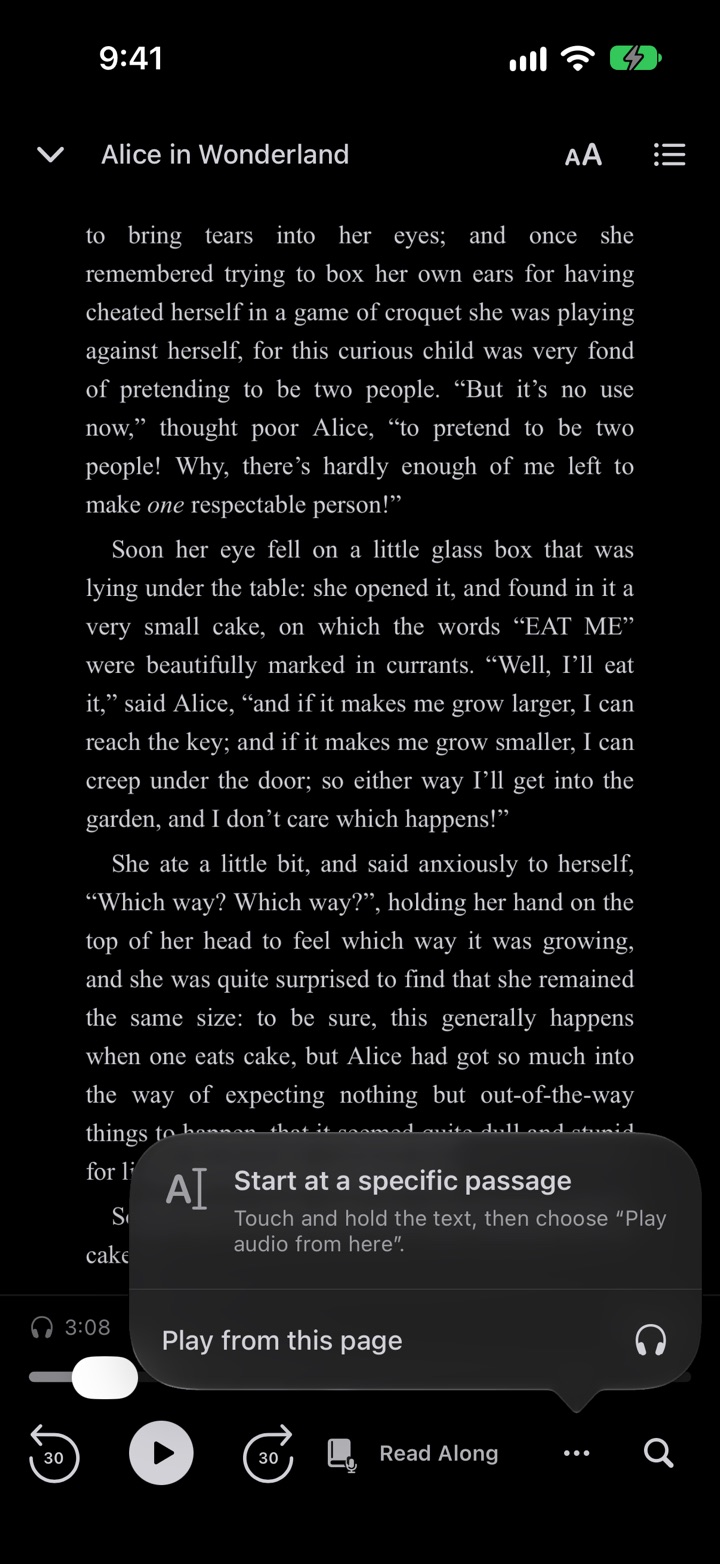
To start from a particular spot, touch and hold the text, select a passage of at least three words, and choose Play audio from here.
While it searches, a message shows how long it has been, with Cancel to stop. It gives up after 60 seconds without a confident match. If the jump was a big one, a Go back banner lets you return to where you were.
It needs the same things as Read Along: the audio and EPUB downloaded, and Speech Recognition.
Adjust how closely audio must match the text
Settings > Reading & listening > Match strictness sets how closely the audio has to match the text: Low, Medium (the default) or High. Higher strictness finds fewer matches but is less likely to land in the wrong place. Try Low if searches keep failing on a book whose edition differs from the narration.
Ebook and Read Along problems
Why can’t SoundLeaf see my EPUB?
SoundLeaf checks all of the book’s files for an EPUB. It also finds EPUBs that Audiobookshelf lists as extra files, called supplementary, rather than the book’s main ebook. That includes EPUBs beside an audiobook when Audiobooks only is on. If tapping Read doesn’t open your EPUB:
- Check the file is an EPUB. A PDF or MOBI won’t open; the book’s Read Along tab names the format it found, for example “This ebook is a PDF file.”
- Check the EPUB is in the same folder as the audiobook, so Audiobookshelf treats them as one item.
- Scan the library in Audiobookshelf so it picks up the new file.
- Pull to refresh in SoundLeaf, or open the book’s page while connected.
With Audiobooks only on, Audiobookshelf ignores an EPUB that sits in a folder with no audio, so an ebook on its own never reaches the library. Put it next to its audiobook, or turn the setting off in the library’s settings and scan again.
No Read Along pill
Read Along needs a book with both audio and an EPUB, and a device that can recognise speech.
”Read Along requires on-device speech recognition, which isn’t available on this device.”
Your device can’t do the speech recognition Read Along needs. You can still read the book.
”Download the audio to find this passage”
Read Along and Play from this page work on downloaded audio. Tap Download the book, then try again.
”Allow Speech Recognition in Settings to find audio”
Speech Recognition is turned off for SoundLeaf. Turn it on in the iPhone Settings app, under SoundLeaf.
”No confident match in 60s.”
Try a longer, more distinctive passage, or lower Match strictness in Settings > Reading & listening. Matching can miss when the audiobook and the ebook are different editions.
”Read Along wasn’t ready after 40s. Try again.”
The book’s processing didn’t reach your spot in time. Leave the reader open, or start processing from the book’s Read Along tab, then try again.
”The book’s files have changed. Read Along needs to process this version again.”
The audiobook or ebook changed on your server, so the old matching no longer fits. Process the book again from its Read Along tab.
”Turn off Low Power Mode to find audio.”
Play from this page doesn’t run in Low Power Mode. Turn it off in Control Centre or the Settings app.
Position isn’t syncing with the web reader
Reading position syncs through your Audiobookshelf server, so the app needs to reach the server after you read. Open the app with a connection and it catches up. More fixes are on error messages.