
Guides · Features
Audiobookshelf sleep timer on iPhone: chapter end, fade out and night hours
Stop your Audiobookshelf book after a set time, at the end of this or the next chapter or episode, with a fade out and a timer that starts itself at night.
SoundLeaf’s sleep timer stops your book after a set time, or at the end of this chapter or the next one. A timer set in minutes can fade out before it stops and put you back where the fade began. It can also start itself at the hours you go to bed.
Setting a timer
Open the player and tap the moon button in the row of actions. Books and podcast episodes both have it.
- Presets: 5, 15, 30 and 45 minutes, 1, 2 and 4 hours.
- Your own number: the minus and plus buttons below the presets go from 5 minutes to 12 hours in steps of five, then Start. It remembers what you last set.
- End of Chapter and End of Next Chapter, on a book.
- End of Episode and End of Next Episode, on a podcast episode.
- Cancel Timer, when one is running.
Stop at the end of the next chapter or episode
“One more chapter” is what End of Next Chapter is for. It lets the current chapter finish, plays the next one, and stops when that one ends.
On a podcast, End of Next Episode does the same with your queue: it finishes this episode, plays the next one in Up Next, and stops after it.
When one of these can’t work, it stays in the menu, greyed out, with the reason under it:
- “This book has no chapters.”
- “This is the last chapter.”
- “Nothing is queued after this episode.”
While a timer runs, the moon button shows what’s left, and the menu says so too. Paused with playback means the countdown waits until playback starts again. The timer only counts down while something is playing.
Fade out before the timer stops
With fade out on, a timer set in minutes turns the volume down to silence over its last few seconds. When it stops, your place goes back to where the fade began. Nothing you heard through the fade is lost.
Set the length in Settings > Playback > Fade Out Before Stopping: off, or 5, 10, 15, 30 or 60 seconds. The default is 15 seconds.
The chapter and episode timers have no fade. They stop at the end of the chapter or episode.
Starting automatically at night
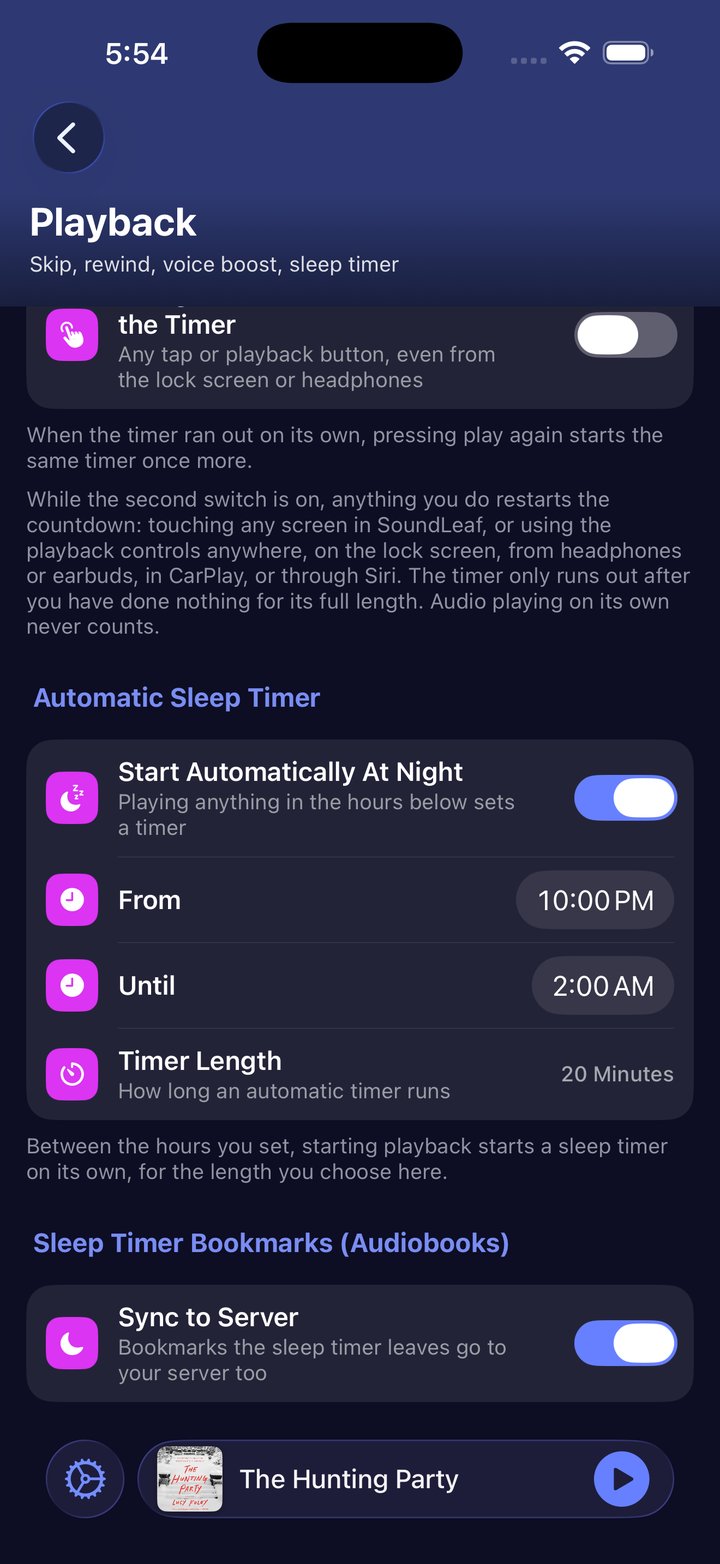
Under Settings > Playback > Automatic Sleep Timer:
- Start Automatically At Night turns it on.
- From and Until are your night hours. 22:00 to 02:00 to start with, and the window is allowed to cross midnight.
- Timer Length is how long an automatic timer runs: from 5 to 120 minutes, 20 to start with.
Press play inside those hours and a timer starts automatically. Outside them nothing happens, and a timer you set by hand is never replaced by an automatic one.
Restart the timer when you use SoundLeaf
Turn on Settings > Playback > Using SoundLeaf Restarts the Timer to reset a timer set in minutes whenever you tap in SoundLeaf or use playback controls. That includes controls on the lock screen, your headphones, CarPlay and Siri.
So the timer only runs out after its full length of playback with no taps or button presses. Audio playing by itself never counts as doing something.
Pressing play starts it again
Settings > Playback > Start Timer Again On Play covers waking up, pressing play, and drifting off a second time. When the last timer ran out on its own, the next play starts the same one again, the same length or the same chapter rule.
Cancelled timers and automatic night timers don’t restart with this setting. During your night hours, pressing play can start a new automatic timer instead.
On the lock screen
A timer set in minutes counts down on the lock screen as a Live Activity, and in the Dynamic Island on the iPhones that have one. The lock screen card has a cancel button. Hold the island open and you get +15 min and Cancel.
Extending is not the same as choosing a duration. The added quarter hour is for now, and does not become the length the timer uses when it restarts.
Chapter and episode timers don’t show a Live Activity. If a timer set in minutes shows nothing, check that Apps > SoundLeaf > Live Activities is on in the iPhone Settings app.
Find your place after falling asleep
On books, SoundLeaf leaves a bookmark where the timer started and another where it stopped, so you can find your way back to the last thing you remember hearing. A chapter timer names the chapter in its bookmarks.
Under Settings > Playback, Sleep Timer Bookmarks (Audiobooks) has a Sync to Server switch that decides whether they reach your Audiobookshelf server as well. It’s on by default.
If you listened on another device too, see how progress syncs. Your bookmarks are listed with the rest in queue, playlists and bookmarks. Fade length and the other playback options are in player settings.
Set a sleep timer with Shortcuts
The Shortcuts app has a Set Sleep Timer action where you choose how many minutes it runs. Make a shortcut with this action, name it what you’d like to say, and Siri will run it. It answers “Nothing is playing right now” when there’s nothing to stop.
The +15 min and cancel buttons are on the Live Activity. Shortcuts doesn’t have them. More on Shortcuts in widgets and Siri.
Troubleshooting
Why does my sleep timer never run out?
Check whether Using SoundLeaf Restarts the Timer is on. If it is, taps in SoundLeaf restart a timer set in minutes (chapter and episode timers ignore it). Any tap on any SoundLeaf screen counts, and so does a playback button on the lock screen or on your headphones. Turn the switch off if you want a timer that runs down whatever you do.
The countdown is stuck
The audio is paused. The timer counts down only while something plays, and the menu says Paused with playback when that’s why.
It stopped early, or stopped without fading
A chapter or episode timer stops when that chapter or episode ends, which can be sooner than you expected, and it doesn’t fade. Check whether the timer button shows a book or microphone icon.
The night timer didn’t start
Playback has to start inside your night hours. With the default 22:00 start, a book you start at 21:55 gets no automatic timer when 22:00 comes, because the check runs when playback starts, not while it continues.
It restarted when I didn’t want it to
Turn off Start Timer Again On Play. Cancelling a timer also stops it from starting again the next time you press play. If a new timer starts during your night hours, turn off Start Automatically At Night too.